
What is transcoding?

Digital media comes in a variety of formats, each with its own set of specifications and codecs. Transcoding is what bridges the gap between different formats. Today, we'll be taking a deep dive into the world of transcoding; exploring its definition, importance, and how Transloadit can help you transcode your files in seconds.
What is transcoding?
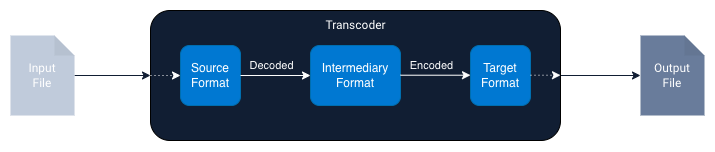
Put simply, transcoding is the process of transforming a media file of a certain format, into a media file of another format. As you can see in the diagram below, transcoding a file first involves decoding it into an intermediary uncompressed format (commonly PCM for audio or YUV for video). The intermediate file can then be freely encoded into whichever format is desired. Although, if you are transcoding into a lossy format, it is important to be aware of generation loss. This term stands for the degradation of quality that is caused by a small amount of information being lost upon each transcoding. With video transcoding, this loss of quality might be observed as small artifacts in the video, reminiscent of an early 2000's home video.
Why is transcoding necessary?
Now that we know what transcoding is, let's explore a few reasons why you might want to start transcoding your files.
Making sure that content is compatible across as many different devices and platforms as possible is crucial for any platform hosting media online. Transcoding allows you to convert media files into a myriad of formats, ensuring compatibility no matter what format the media was first uploaded in, and no matter what device your user is using.
Moreover, if you're looking to use adaptive streaming formats like HLS or DASH, transcoding your files is an imperative step in the adaptive streaming pipeline. Users nowadays expect to be able to continue playback even on a poor connection, which simply isn't possible with non-adaptive formats.
Perhaps one of the most important reasons for transcoding your files, though, is file optimization. Storage can be really costly, especially when dealing with large numbers of files. Instead of digging deep into your pockets, you can adjust the resolution, bitrate, and codec parameters, resulting in minimal quality loss, while reducing the amount of storage needed for your files.
Transcoding vs encoding
Transcoding and encoding are two terms that are often used interchangeably, but they actually refer to separate processes with subtle differences. Encoding is the process of converting data from one format to another. Typically, this is done to compress the data or to change it to a format that is more suitable for the desired application, such as streaming over the internet.
Transcoding, as already mentioned earlier, involves decoding the file into an intermediary format, and then encoding it into the target format. This is done to change the format or codec of the media file to ensure compatibility across devices or platforms, allowing you to ensure the best viewing experience regardless of the specifics of where the user is consuming your content.
How can I transcode videos with Transloadit?
Of course, you could set up an in-house transcoding pipeline, using CLI tools such as FFmpeg. However, integrating this into your media workflow can quickly blow up in scope, taking your focus away from your core product. Luckily, Transloadit offers an easy solution. Simply pass us your files, and our dedicated team of Robots will transform them to your exact specification. Then, the baton is passed back to you, to seamlessly deliver the content to your users.
How about we take a look at an example? The Template below shows how to make any uploaded video compatible for browsers, using Uppy.
<!-- This pulls Uppy from our CDN -->
<!-- For smaller self-hosted bundles, install Uppy and plugins manually: -->
<!-- npm i --save @uppy/core @uppy/dashboard @uppy/remote-sources @uppy/transloadit ... -->
<link
  href="https://releases.transloadit.com/uppy/v3.10.0/uppy.min.css"
  rel="stylesheet"
/>
<button id="browse">Select Files</button>
<script type="module">
  import {
    Uppy,
    Dashboard,
    ImageEditor,
    RemoteSources,
    Transloadit,
  } from 'https://releases.transloadit.com/uppy/v3.10.0/uppy.min.mjs'
  const uppy = new Uppy()
    .use(Transloadit, {
      waitForEncoding: true,
      alwaysRunAssembly: true,
      assemblyOptions: {
        params: {
          // It's often better store encoding instructions in your account
          // and use a `template_id` instead of adding these steps inline
          steps: {
            ':original': {
              robot: '/upload/handle',
            },
            browser720_webm_encoded: {
              use: ':original',
              robot: '/video/encode',
              result: true,
              ffmpeg_stack: 'v7',
              height: 720,
              preset: 'webm',
              turbo: false,
              width: 1280,
            },
            browser720_h264_encoded: {
              use: ':original',
              robot: '/video/encode',
              result: true,
              ffmpeg_stack: 'v7',
              height: 720,
              preset: 'ipad-high',
              turbo: false,
              width: 1280,
            },
            thumbed: {
              use: 'browser720_h264_encoded',
              robot: '/video/thumbs',
              result: true,
              count: 1,
              ffmpeg_stack: 'v7',
              format: 'jpg',
              height: 720,
              resize_strategy: 'fit',
              width: 1280,
            },
            exported: {
              use: ['browser720_webm_encoded', 'browser720_h264_encoded', 'thumbed', ':original'],
              robot: '/s3/store',
              credentials: 'demo_s3_credentials',
              url_prefix: 'https://demos.transloadit.com/',
            },
          },
        },
      },
    })
    .use(Dashboard, { trigger: '#browse' })
    .use(ImageEditor, { target: Dashboard })
    .use(RemoteSources, {
      companionUrl: 'https://api2.transloadit.com/companion',
    })
    .on('complete', ({ transloadit }) => {
      // Due to `waitForEncoding:true` this is fired after encoding is done.
      // Alternatively, set `waitForEncoding` to `false` and provide a `notify_url`
      console.log(transloadit) // Array of Assembly Statuses
      for (const assembly of transloadit) {
        console.log(assembly.results) // Array of all encoding results
      }
    })
    .on('error', (error) => {
      console.error(error)
    })
</script>
And this is just the tip of the iceberg. We have a variety of others demos, just like the one above. We encourage you to take a look.


Next steps
Hopefully, you now have the knowledge necessary to become a legendary transcoding wizard 🧙 If so, embark on the next step in your journey and sign up for Transloadit below, with our free forever Community Plan. Our outstanding support team is happy to help you, in case you get stuck along the way.