
Introducing the new PDF merge Robot at Transloadit

We love our Robots, so it's always a pleasure to announce the release of a new one! In today's blog, we get the opportunity to do just that, by welcoming our /document/merge Robot to the team.

As you may have already assumed, the /document/merge Robot concatenates several PDFs, to form a single output document. Moreover, the Robot supports merging several password-protected PDFs – simply supply it with an array of input passwords. You can protect the output PDF as well, by providing an output password. This way, you can be sure that your secrets stay secret.
Merging two PDFs
Let's see it in action! The below Template will take two password-protected PDFs and merge them together. You may also be interested in using one of our SDKs, to easily automate the bulk processing of documents, or for sanitizing user-inputted documents.
<!-- This pulls Uppy from our CDN -->
<!-- For smaller self-hosted bundles, install Uppy and plugins manually: -->
<!-- npm i --save @uppy/core @uppy/dashboard @uppy/remote-sources @uppy/transloadit ... -->
<link
  href="https://releases.transloadit.com/uppy/v3.10.0/uppy.min.css"
  rel="stylesheet"
/>
<button id="browse">Select Files</button>
<script type="module">
  import {
    Uppy,
    Dashboard,
    ImageEditor,
    RemoteSources,
    Transloadit,
  } from 'https://releases.transloadit.com/uppy/v3.10.0/uppy.min.mjs'
  const uppy = new Uppy()
    .use(Transloadit, {
      waitForEncoding: true,
      alwaysRunAssembly: true,
      assemblyOptions: {
        params: {
          // It's often better store encoding instructions in your account
          // and use a `template_id` instead of adding these steps inline
          steps: {
            ':original': {
              robot: '/upload/handle',
            },
            merge: {
              use: {
                steps: [':original'],
                bundle_steps: true,
              },
              robot: '/document/merge',
              result: true,
              input_passwords: ['password1', 'password2'],
            },
            exported: {
              use: ['merge', ':original'],
              robot: '/s3/store',
              credentials: 'demo_s3_credentials',
              url_prefix: 'https://demos.transloadit.com/',
            },
          },
        },
      },
    })
    .use(Dashboard, { trigger: '#browse' })
    .use(ImageEditor, { target: Dashboard })
    .use(RemoteSources, {
      companionUrl: 'https://api2.transloadit.com/companion',
    })
    .on('complete', ({ transloadit }) => {
      // Due to `waitForEncoding:true` this is fired after encoding is done.
      // Alternatively, set `waitForEncoding` to `false` and provide a `notify_url`
      console.log(transloadit) // Array of Assembly Statuses
      for (const assembly of transloadit) {
        console.log(assembly.results) // Array of all encoding results
      }
    })
    .on('error', (error) => {
      console.error(error)
    })
</script>
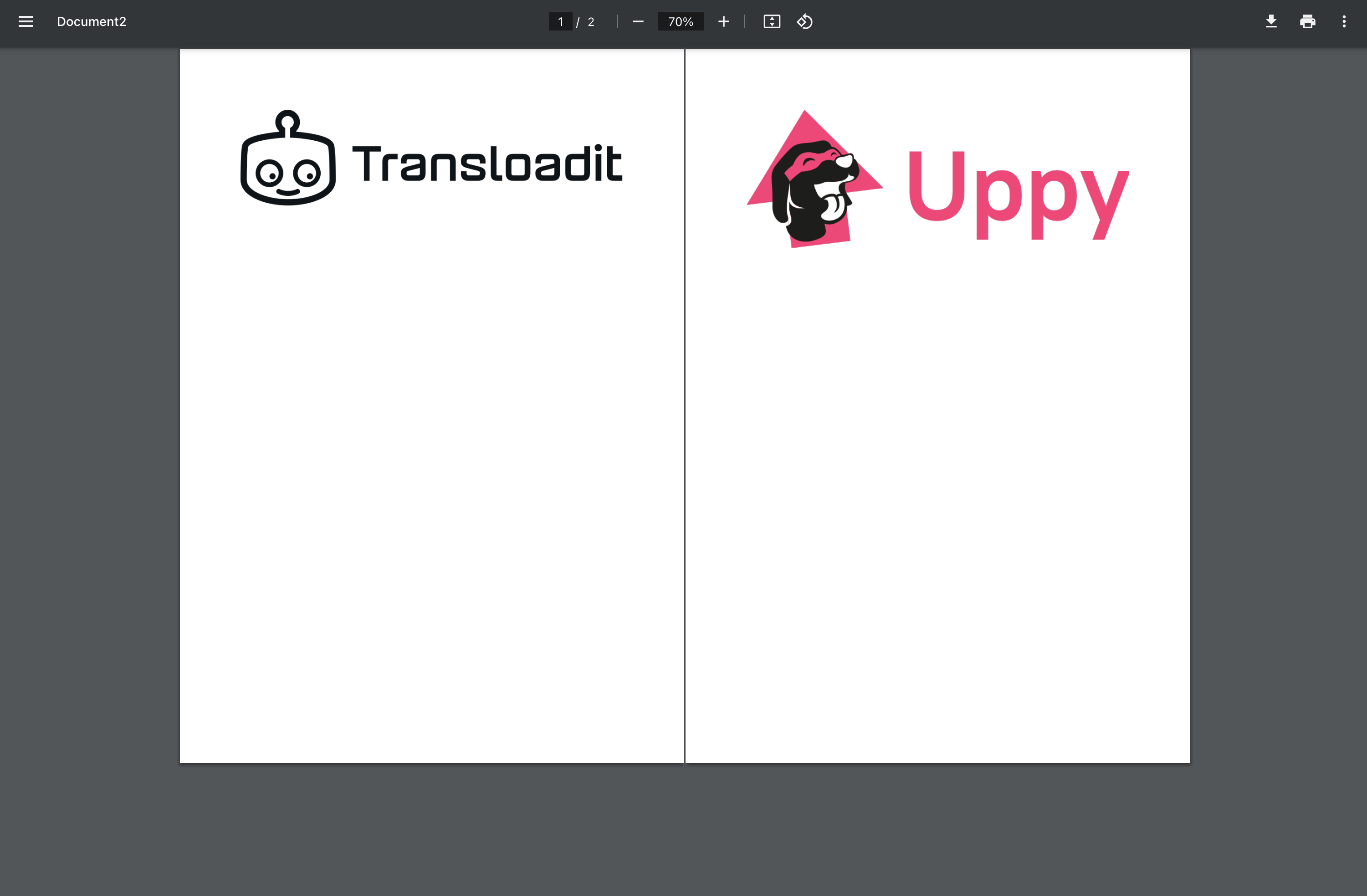
As you can see, by passing in an array of passwords to the input_passwords parameter, Transloadit
processes the PDFs. The documents are then stitched together into a single output PDF, which is
shown below.
And if you're looking to password protect the output file too, that's no problem! Simply add the
output_password parameter, and supply the password you'd like to use.
{
  "steps": {
    "merge": {
      "use": {
        "steps": [":original"],
        "bundle_steps": true
      },
      "robot": "/document/merge",
      "input_passwords": ["password1", "password2"],
      "output_password": "transloadit",
      "result": true
    },
    "exported": {
      "use": ["merge", ":original"],
      "robot": "/s3/store",
      "credentials": "YOUR_AWS_CREDENTIALS",
      "url_prefix": "https://demos.transloadit.com/"
    }
  }
}
Now your important PDF is safely kept away from unwanted eyes, even if a third party manages to get their hands on your documents.
Wrapping up
That's it for today's look at our latest Robot. We've got a few more that are ready to be introduced, so stay tuned for future updates on all things Transloadit by signing up for the Dev Times below.