
What is HLS?

In the dynamic landscape of online video streaming, one protocol has emerged as a powerhouse: HTTP Live Streaming (HLS). In this blog post, we'll delve into the intricacies of HLS, exploring its features, benefits, and ways in which it stands out in the realm of streaming protocols. We will also include a quick example on how you can start leveraging HLS using the Transloadit API.
What is streaming?
Before we dive into the specifics of HLS, let's first make sure we understand streaming as a broader concept. Streaming refers to the continuous delivery, in real time, of audio or video content over the internet. Unlike traditional downloads, where the entire file needs to be downloaded before the user can start playback, streaming allows users to begin consuming content while it is being delivered.
What is HLS?
The acronym HLS stands for "HTTP Live Streaming".
HLS is a proprietary streaming protocol launched by Apple in 2009. It was created in response to an issue with the original iPhone and the iPhone 2, where video content would buffer as the device kept switching between WiFi and the mobile network. QuickTime was introduced at the time to try and solve this problem. However, due to QuickTime using the non-standard Real-Time Streaming Protocol (RTSP), firewalls often blocked streamed media. Therefore, HLS was created so that media could be streamed using the standard HTTP protocol, and it is now one of the most used streaming protocols.
How does HLS work?
Before a video file can be streamed using HLS, three steps have to first be performed to create an HLS file:
- The file is encoded in either the H.264 or H.265 encoding format at several different bitrates. Check out our blog on video compression for more information on what this means.
- The encoded files are then divided into segments that are only a few seconds long.
- An index is created first for each quality level, which stores the location and timestamp of each segment at that quality level. Another global index then points to the local indexes for each quality level. The global index is the one that is referenced for playback.
These segments are then delivered to the viewer's device via the HTTP protocol. Since the video is encoded at several different bitrates, the quality of the video can be adjusted during playback to match network capabilities. This allows playback to continue even on poor connections, so that you don't have to wait for your favorite movie to buffer before you can watch it.
The diagram below illustrates how the image quality may vary as the network connection fluctuates.
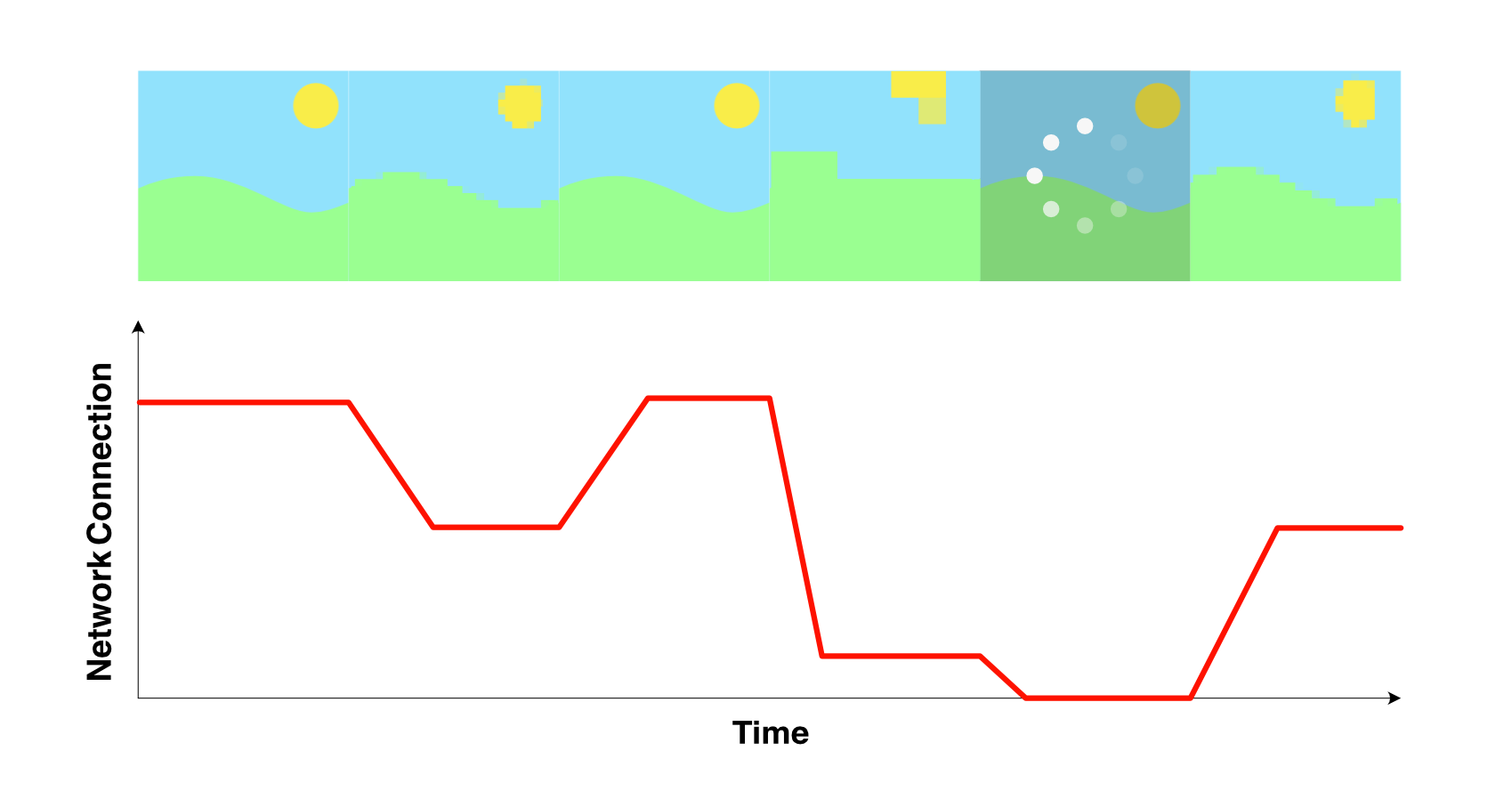
Often, the video and audio streams are separated and delivered to the users independently, as audio is usually prioritized for streaming. If the network becomes unstable, the video quality is the first to drop, followed by the audio quality. In extreme cases, this may lead to only the audio stream being played back, although this is rare.
What's the difference between HLS and MPEG-DASH?
Like HLS, MPEG-DASH is a method of streaming media over HTTP that encodes and segments a video before it is streamed to a user. In the same fashion as HLS, MPEG-DASH will also create an index file to keep track of the order the segments should be played back in. However, HLS is a proprietary format created by Apple, whereas MPEG-DASH is an open-source format created by the team at MPEG.
A full comparison of features is shown in the table below.
| HLS | MPEG-DASH | |
|---|---|---|
| Encoding format | H.264/H.265 | Any |
| Device support | Any | All apart from Apple devices |
| Default segment length (s) | 6 | 2 |
| Adaptive bitrate streaming? | ✔️ | ✔️ |
| Supports ad insertion? | ✔️ | ✔️ |
| Developer | Proprietary Apple product | Open source from MPEG |
| Transport protocol | TCP | TCP |
Does Transloadit support HLS?
Thanks to the /video/adaptive Robot, Transloadit supports both HLS and MPEG-DASH. Let's take a look at a Template to see how you can start using this Robot to create high-quality streamable media.
The below Template will encode a video at three different quality levels, before passing
it to the /video/adaptive Robot. It is then
segmented and indexed into a .m3u8 playlist, which can be streamed to your users using a
CDN.
<!-- This pulls Uppy from our CDN -->
<!-- For smaller self-hosted bundles, install Uppy and plugins manually: -->
<!-- npm i --save @uppy/core @uppy/dashboard @uppy/remote-sources @uppy/transloadit ... -->
<link
  href="https://releases.transloadit.com/uppy/v3.10.0/uppy.min.css"
  rel="stylesheet"
/>
<button id="browse">Select Files</button>
<script type="module">
  import {
    Uppy,
    Dashboard,
    ImageEditor,
    RemoteSources,
    Transloadit,
  } from 'https://releases.transloadit.com/uppy/v3.10.0/uppy.min.mjs'
  const uppy = new Uppy()
    .use(Transloadit, {
      waitForEncoding: true,
      alwaysRunAssembly: true,
      assemblyOptions: {
        params: {
          // It's often better store encoding instructions in your account
          // and use a `template_id` instead of adding these steps inline
          steps: {
            ':original': {
              robot: '/upload/handle',
            },
            low: {
              use: ':original',
              robot: '/video/encode',
              result: true,
              ffmpeg_stack: 'v7',
              preset: 'hls-270p',
              turbo: true,
            },
            mid: {
              use: ':original',
              robot: '/video/encode',
              result: true,
              ffmpeg_stack: 'v7',
              preset: 'hls-360p',
              turbo: true,
            },
            high: {
              use: ':original',
              robot: '/video/encode',
              result: true,
              ffmpeg_stack: 'v7',
              preset: 'hls-540p',
              turbo: true,
            },
            adaptive: {
              use: {
                steps: ['low', 'mid', 'high'],
                bundle_steps: true,
              },
              robot: '/video/adaptive',
              playlist_name: 'my_playlist.m3u8',
              technique: 'hls',
            },
            exported: {
              use: ['adaptive', ':original'],
              robot: '/s3/store',
              credentials: 'demo_s3_credentials',
              path: 'hlsdemo/${file.meta.relative_path}/${file.name}',
              url_prefix: 'https://demos.transloadit.com/',
            },
          },
        },
      },
    })
    .use(Dashboard, { trigger: '#browse' })
    .use(ImageEditor, { target: Dashboard })
    .use(RemoteSources, {
      companionUrl: 'https://api2.transloadit.com/companion',
    })
    .on('complete', ({ transloadit }) => {
      // Due to `waitForEncoding:true` this is fired after encoding is done.
      // Alternatively, set `waitForEncoding` to `false` and provide a `notify_url`
      console.log(transloadit) // Array of Assembly Statuses
      for (const assembly of transloadit) {
        console.log(assembly.results) // Array of all encoding results
      }
    })
    .on('error', (error) => {
      console.error(error)
    })
</script>
Taking a look at the generated index file my_playlist.m3u8, we can see that it stores the location
of each video quality's index file. In each of these, the segment order is preserved, as well as the
timestamp that signifies when to switch between segments.
my_playlist.m3u8
#EXTM3U
#EXT-X-STREAM-INF:BANDWIDTH=687899,FRAME-RATE=30,CODECS="avc1.4d001e,mp4a.40.5",RESOLUTION=480x270
480x270/480x270_534648_30.m3u8
#EXT-X-STREAM-INF:BANDWIDTH=1216861,FRAME-RATE=30,CODECS="avc1.4d001f,mp4a.40.5",RESOLUTION=640x360
640x360/640x360_981616_30.m3u8
#EXT-X-STREAM-INF:BANDWIDTH=1916095,FRAME-RATE=30,CODECS="avc1.4d001f,mp4a.40.5",RESOLUTION=960x540
960x540/960x540_1567376_30.m3u8
#EXT-X-ENDLIST
960x540_1567376_30.m3u8
#EXTM3U
#EXT-X-PLAYLIST-TYPE:VOD
#EXT-X-TARGETDURATION:11
#EXT-X-VERSION:3
#EXT-X-MEDIA-SEQUENCE:0
#EXTINF:10.110,
seg__0.ts
#EXTINF:10.060,
seg__1.ts
#EXTINF:1.950,
seg__2.ts
#EXT-X-ENDLIST
Wrapping up
That's all for our deep dive into the HLS streaming protocol! Hopefully this can serve as a spark of inspiration for you to continue your journey into the world of media streaming. If you're looking for the next step in your quest, create a Transloadit account to start transcoding your files using the HLS format.