
Take a scrolling screenshot of a website automatically (by using a URL)
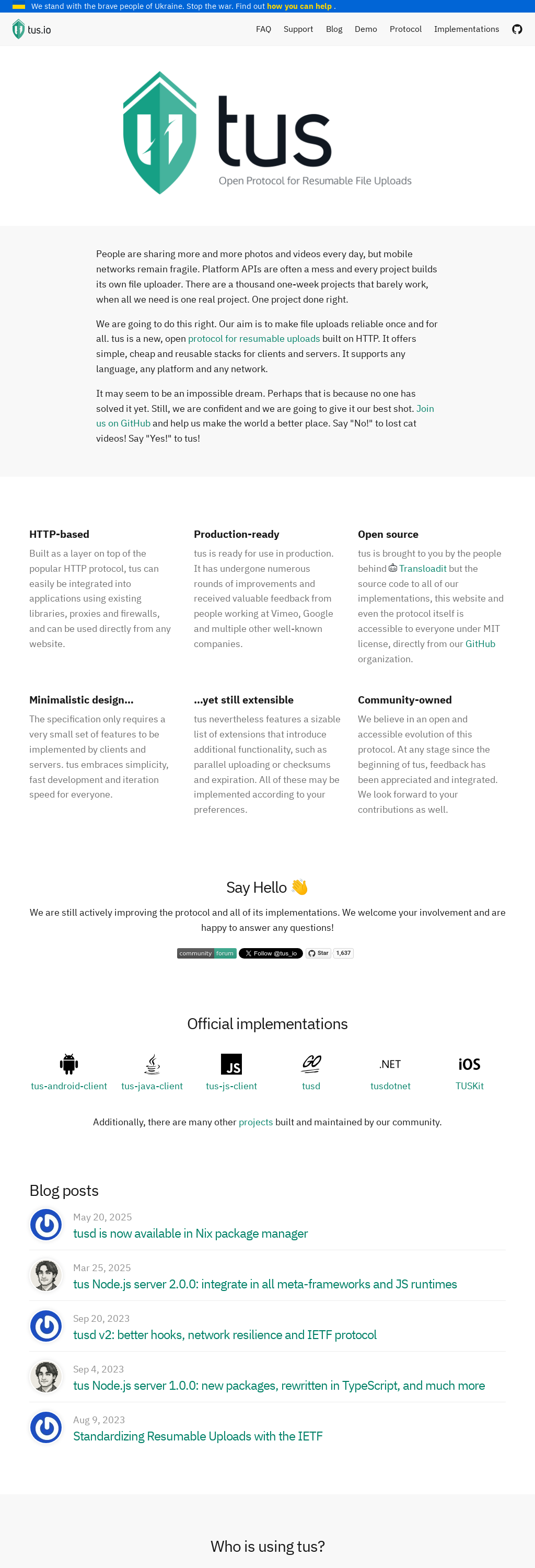
Transloadit can take a scrolling screenshot of any website or HTML file. In this demo below we let 🤖/html/convert take a PNG screenshot from the Uppy website.
We then feed this screenshot into 🤖/video/merge, and use the scroll
FFmpeg parameter to automatically generate a video that slowly pans down the screenshot we took.
To achieve this effect we use the scroll filter, to animate the image moving down. The value of
v determines how fast the image will scroll. After this, we use the crop filter to define the
size of our "viewbox".
Step 1:
 Take screenshots of webpages or HTML files
We can process your documents in an automated way, saving you costly resources.Learn more
"screenshot": {
  "robot": "/html/convert",
  "result": true,
  "format": "png",
  "fullpage": false,
  "height": 3000,
  "url": "https://tus.io/",
  "width": 1024
}This bot takes screenshots of web pages or uploaded HTML pages
Step 2:
 Merge video, audio, images into one video
We offer a variety of video encoding features like optimizing for different devices, merging, injecting ads, changing audio tracks, or adding company logos.Learn more
"scroll": {
  "use": {
    "steps": [
      {
        "name": "screenshot",
        "as": "image"
      }
    ]
  },
  "robot": "/video/merge",
  "result": true,
  "duration": 20,
  "ffmpeg": {
    "r": 30,
    "vf": "scroll=v=0.001,crop=1024:720:0:0",
    "f": "mp4",
    "pix_fmt": "yuv420p"
  },
  "ffmpeg_stack": "v7",
  "preset": "empty"
}This bot composes a new video by adding an audio track to existing still image(s) or video
Step 3:
 Export files to Amazon S3
We export to the storage platform of your choice.Learn more
"exported": {
  "use": [
    "screenshot",
    "scroll",
    ":original"
  ],
  "robot": "/s3/store",
  "credentials": "demo_s3_credentials",
  "url_prefix": "https://demos.transloadit.com/"
}This bot exports encoding results to Amazon S3
Live Demo. See for yourself
Loading Uppy demo…
Build this in your own language
<!-- This pulls Uppy from our CDN -->
<!-- For smaller self-hosted bundles, install Uppy and plugins manually: -->
<!-- npm i --save @uppy/core @uppy/dashboard @uppy/remote-sources @uppy/transloadit ... -->
<link
  href="https://releases.transloadit.com/uppy/v3.10.0/uppy.min.css"
  rel="stylesheet"
/>
<button id="browse">Select Files</button>
<script type="module">
  import {
    Uppy,
    Dashboard,
    ImageEditor,
    RemoteSources,
    Transloadit,
  } from 'https://releases.transloadit.com/uppy/v3.10.0/uppy.min.mjs'
  const uppy = new Uppy()
    .use(Transloadit, {
      waitForEncoding: true,
      alwaysRunAssembly: true,
      assemblyOptions: {
        params: {
          // It's often better store encoding instructions in your account
          // and use a `template_id` instead of adding these steps inline
          steps: {
            screenshot: {
              robot: '/html/convert',
              result: true,
              format: 'png',
              fullpage: false,
              height: 3000,
              url: 'https://tus.io/',
              width: 1024,
            },
            scroll: {
              use: {
                steps: [{
                  name: 'screenshot',
                  as: 'image',
                }],
              },
              robot: '/video/merge',
              result: true,
              duration: 20,
              ffmpeg: {
                r: 30,
                vf: 'scroll=v=0.001,crop=1024:720:0:0',
                f: 'mp4',
                pix_fmt: 'yuv420p',
              },
              ffmpeg_stack: 'v7',
              preset: 'empty',
            },
            exported: {
              use: ['screenshot', 'scroll', ':original'],
              robot: '/s3/store',
              credentials: 'demo_s3_credentials',
              url_prefix: 'https://demos.transloadit.com/',
            },
          },
        },
      },
    })
    .use(Dashboard, { trigger: '#browse' })
    .use(ImageEditor, { target: Dashboard })
    .use(RemoteSources, {
      companionUrl: 'https://api2.transloadit.com/companion',
    })
    .on('complete', ({ transloadit }) => {
      // Due to `waitForEncoding:true` this is fired after encoding is done.
      // Alternatively, set `waitForEncoding` to `false` and provide a `notify_url`
      console.log(transloadit) // Array of Assembly Statuses
      for (const assembly of transloadit) {
        console.log(assembly.results) // Array of all encoding results
      }
    })
    .on('error', (error) => {
      console.error(error)
    })
</script>
So many ways to integrate
Transloadit is a service for companies with developers. And there are many ways developers can put Transloadit to good use inside your company to automate media processing.
Bulk imports
Add one of our import Robots to acquire and transcode massive media libraries.
Handling uploads
We are the experts at reliably handling uploads. We wrote the protocol for it.
Front-end integration
We integrate with web browsers via our next-gen file uploader Uppy and SDKs for Android and iOS.
Back-end integration
Send us batch jobs in any server language using one of our SDKs or directly interfacing with our REST API.
Pingbacks
Configure a notify_url to let your server receive transcoding results JSON in the transloadit POST field.
On-demand
Use our Smart CDN to adapt files on-demand and stream them directly to your users.


 Document processing
 Image processing